How to Migrate from Practice CS Without Losing Client Data (2026 Guide)
A step-by-step Practice CS migration guide: what you can export, what needs a backup, WIP and AR decisions, contract timing, and what each new system imports.


Contents
To migrate from Practice CS without losing client data, back up your Practice CS database first, then export clients and contacts, decide what happens to open WIP and receivables, and only cancel once the new system has run a billing cycle. Practice CS exports clients and each client’s primary contact as XML that opens in Excel, and all contacts to Outlook. Time entries, work in progress and invoice history come out through reports or the full SQL backup. Most firms plan the move in weeks and time it against their support renewal and tax season.
This guide is written for any destination: Uku, Canopy, TaxDome, Firm360, Onvio or another system. It covers what Practice CS lets you take with you, the order to do things in, and what each new system says it imports. The one rule that matters most comes from Thomson Reuters’ own cancellation terms: “After we’ve processed your cancellation, your data will no longer be available to you.”
Facts below were last checked in October 2026.
First: is Practice CS being discontinued?
No, and that changes how you plan. Thomson Reuters shipped a Practice CS release on 26 August 2026 and has published no end-of-life notice for it, so there is no forced deadline for Practice CS itself.
Three deadlines around it are real:
- 10 November 2026: “CS Payment/Kotapay will remain available until November 10, 2026. Beginning on that date, Stripe will be required for all credit card and ACH transactions in Practice CS.”
- 31 December 2027: FileCabinet CS gets no updates or support after this date.
- Your own renewal: support and Software as a Service contracts carry a 12-month commitment, so your renewal date is the practical deadline for a move.
If you are moving because of rumours, you have time to do it properly. If you are moving because of FileCabinet CS or a renewal, those dates set the calendar.
What you can get out of Practice CS
| Data | How it comes out |
|---|---|
| Clients and primary contacts | Client export to XML, opens in Excel |
| All contacts | Export to Microsoft Outlook |
| Time entries and WIP | Reports, or the full database backup |
| Invoices, payments and receivables | Reports, or the full database backup |
| Projects and tasks | Not in the client export; rebuild as templates |
| Documents | FileCabinet CS, a separate product |
| Client portal content | NetClient CS, a separate product |
Clients and primary contacts (XML)
Thomson Reuters’ export article says “Practice CS can export data about selected clients and the primary contact associated with each client” to “an XML file that can be read by any program that can import .XML files including Microsoft Excel”.
The client fields include client ID, EIN/SSN, fiscal year end, sort name, name lines, class, status, start date, individual and spouse names, and days until an invoice is due. The contact fields include name, title, company, phone numbers, primary, business and other addresses, up to four email addresses and a website.
To run it in Practice CS: select File > Export, mark Other under Export Clients To, choose where to save the file, make sure the type is XML Data (*.xml), select the clients and choose Export Selected.
Additional and standalone contacts (Outlook)
The same article is clear about the limit: “Practice CS can export contact information for the primary contact associated with each client only. It cannot export data for additional or standalone contacts.” It also gives the way round it: “Practice CS can export information for all contacts to Microsoft Outlook.” From Outlook, contacts can be exported to CSV for almost any new system.
History: time, WIP, invoices and receivables
The client export carries no history. For time entries, WIP, invoices, payments and receivables you have two routes:
- Reports. Run and save the reports your partners and auditors will want later: billing history, WIP by client, receivables aging. Keep them as PDF and Excel.
- The database backup. Practice CS keeps its data in a SQL Server database. Thomson Reuters’ own steps for moving to hosting begin with “Create a backup of your Practice CS SQL database”, and Canopy’s migration asks for a “.bak or .bdf backup file”. Keep a copy whatever system you choose.
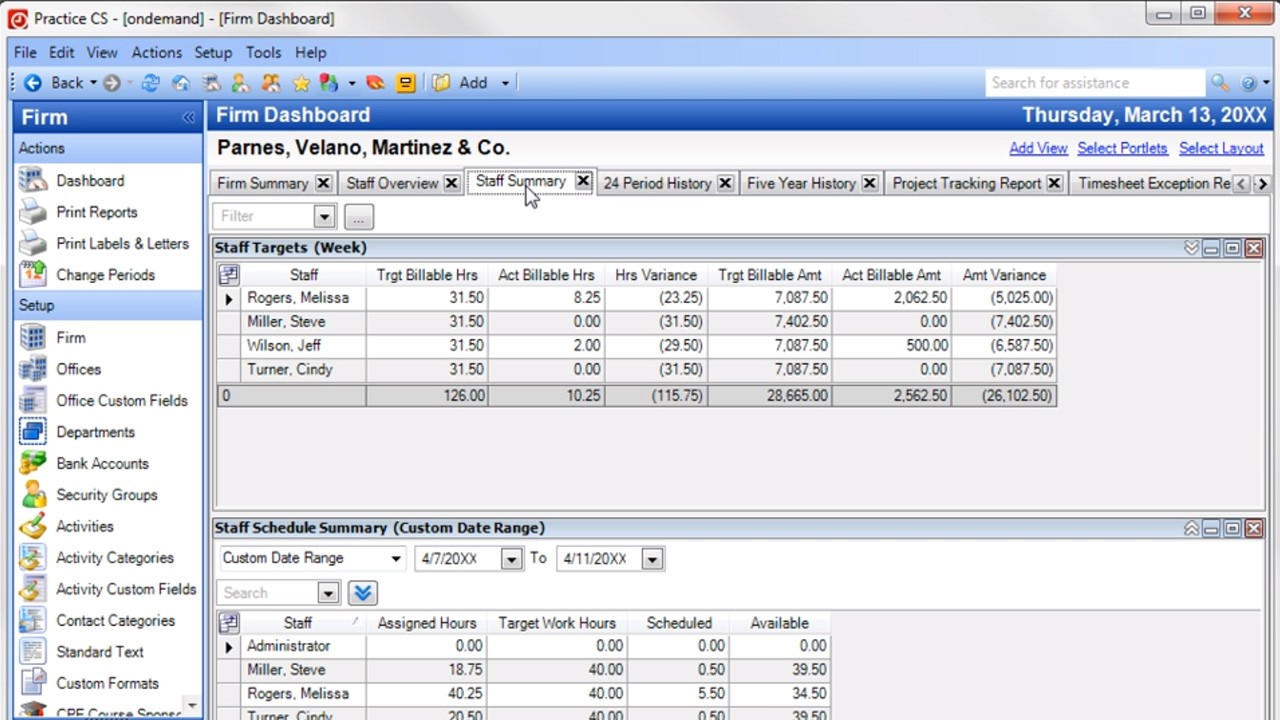 Source: Thomson Reuters demo
Documents and the client portal
Documents are not in Practice CS; they live in FileCabinet CS, and the client portal in NetClient CS. Both need their own plan. Some vendors have tools for FileCabinet CS specifically: TaxDome’s help centre says it has “a migration tool built for it and our team runs the export with you”.
Step-by-Step: How to Migrate from Practice CS
- Pick the cut-over date. Check your support and SaaS renewal dates (12-month commitments), stay clear of tax season, and allow for the Stripe change on 10 November 2026 if you take card or ACH payments.
- Back up everything. Create a backup of your Practice CS SQL database and save the reports you need: billing history, WIP, receivables aging, client lists. Store them where the firm, not one person, can reach them.
- Export clients and contacts. Run the XML client export and open it in Excel; export all contacts to Outlook for the additional and standalone ones. Clean the sheet: inactive clients, duplicates, missing emails.
- Settle WIP. Bill or write off open WIP before the cut-over, so the new system starts clean and nothing is billed twice. If a vendor imports WIP, ask for it in writing.
- Carry receivables across. Pull an accounts receivable report as of the cut-over date. Canopy asks for an “Accounts Receivable Recap Report from your first day using Practice CS through the exact date the backup is created” to reconcile; whatever system you choose, open balances need to match on day one.
- Rebuild recurring work. Turn each Practice CS project type into a template in the new system, with the same steps, owners and due-date rules.
- Set up billing. Recreate each client’s billing arrangement (hourly, fixed, retainer) in the new system before the first invoice run.
- Plan documents and the portal. Decide where FileCabinet CS documents go and how clients will reach the new portal; tell them before the switch.
- Run one cycle in parallel. Bill one period in both systems, compare, then switch off. Keep Practice CS reports and the backup for as long as your retention policy requires.
What each new system says it imports from Practice CS
| System | What it says it imports |
|---|---|
| Canopy | Full backup: clients, contacts, notes, service items, invoices, payments, credits, custom fields |
| TaxDome | Client list: the XML export, saved as CSV in Excel |
| Uku | Client list from Excel or QuickBooks Online |
| Firm360 | Has a Practice CS export article (we couldn’t read it) |
| Karbon | General CSV or Excel client import |
| Onvio (Thomson Reuters) | No Practice CS conversion guide found |
Canopy publishes the most detail. Its Practice CS migration guide lists what is included (“Client, Contacts, Notes, Service Items, Invoices, Payments, Credits, and Custom Fields”) and what is not: “Work-in-Progress (time entries), Roles, Projects/Tasks, Client Groups, and Custom Tags”, of which WIP, roles and custom tags “can be imported separately using the Client Import Workbook”.
TaxDome’s client export guide has Practice CS instructions: export clients as XML, open the file in Excel and save it as CSV, then import.
Onvio Firm Management is Thomson Reuters’ own cloud product, but its migration guides cover FileCabinet CS and NetClient CS; we found no Thomson Reuters article for converting Practice CS data. Ask your account team before you plan around it.
For how these systems compare on features and price, see our Practice CS alternatives.
How long does a Practice CS migration take?
Long enough to run one billing cycle in parallel. The work itself (export, clean, import, templates, billing set-up) usually takes days; what takes weeks is the team learning a new way of working and one full period to compare invoices. Most firms moving to Uku are live in two to six weeks, at their own pace, and keep serving clients throughout. Firm360 quotes six to eight weeks for its own rollout.
The bigger constraint is the calendar. Avoid January to April for US tax firms, start well before your Practice CS support renewal, and give clients a few weeks’ notice before the portal changes.
Moving from Practice CS to Uku
If Uku is your destination, here is how the pieces map. Practice CS clients stay clients. Project Management projects and tasks become workflow templates and client tasks. Each client’s billing arrangement becomes a billing contract. NetClient CS is replaced by Uku’s own client portal, free for clients. We have moved a 40-person firm with 1,000+ clients off Practice CS this way.
What Uku does not do: there is no Practice CS importer and no UltraTax CS integration. Clients come across from the Practice CS XML export opened in Excel, through Uku’s import flow, or from QuickBooks Online. History stays in your Practice CS reports and backup, and UltraTax keeps doing returns.
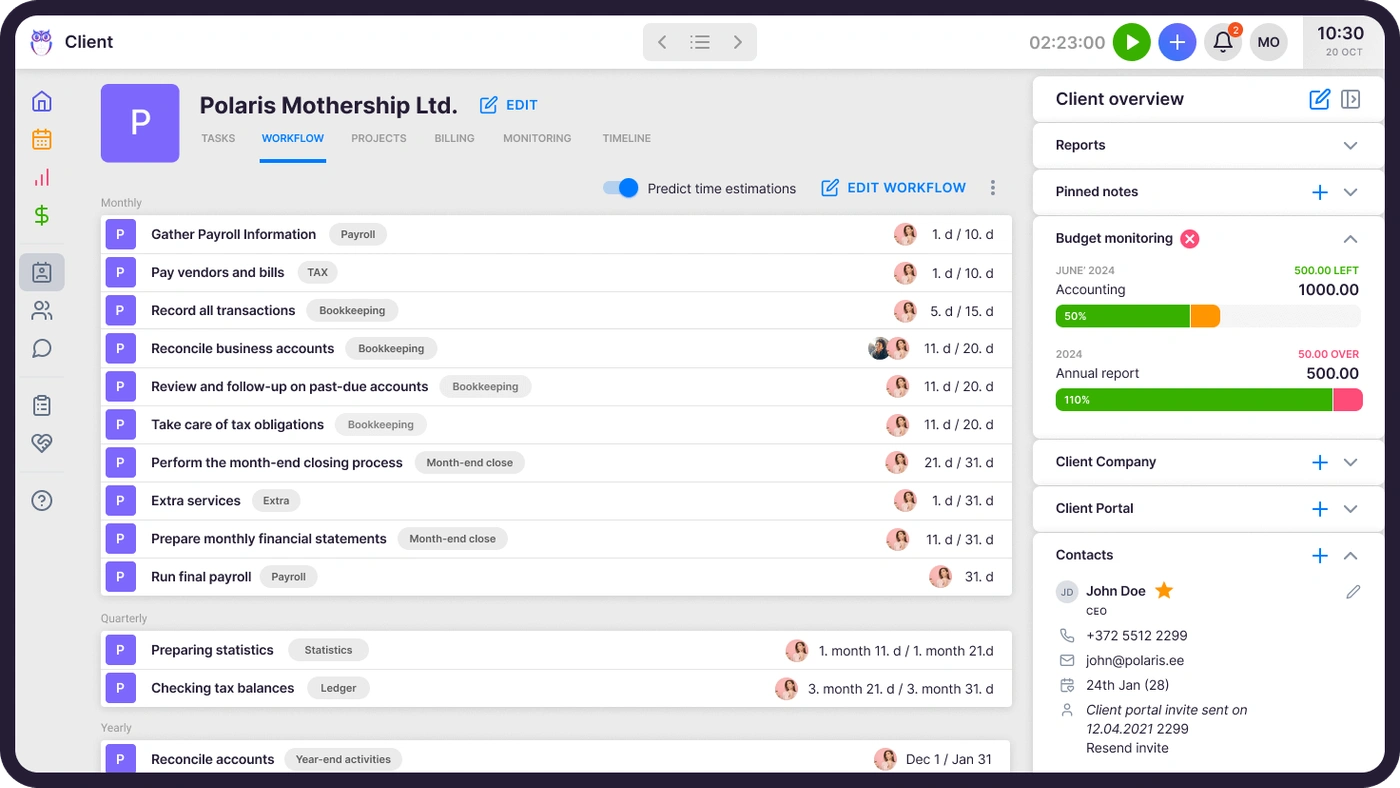
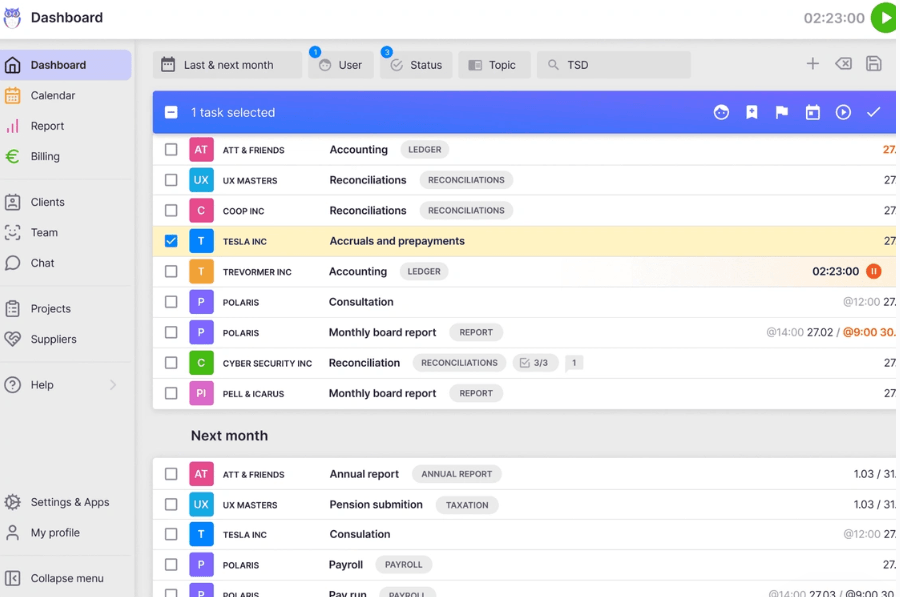
Once the templates are applied, every client’s recurring work appears in the task list on its own, grouped by this month and next.
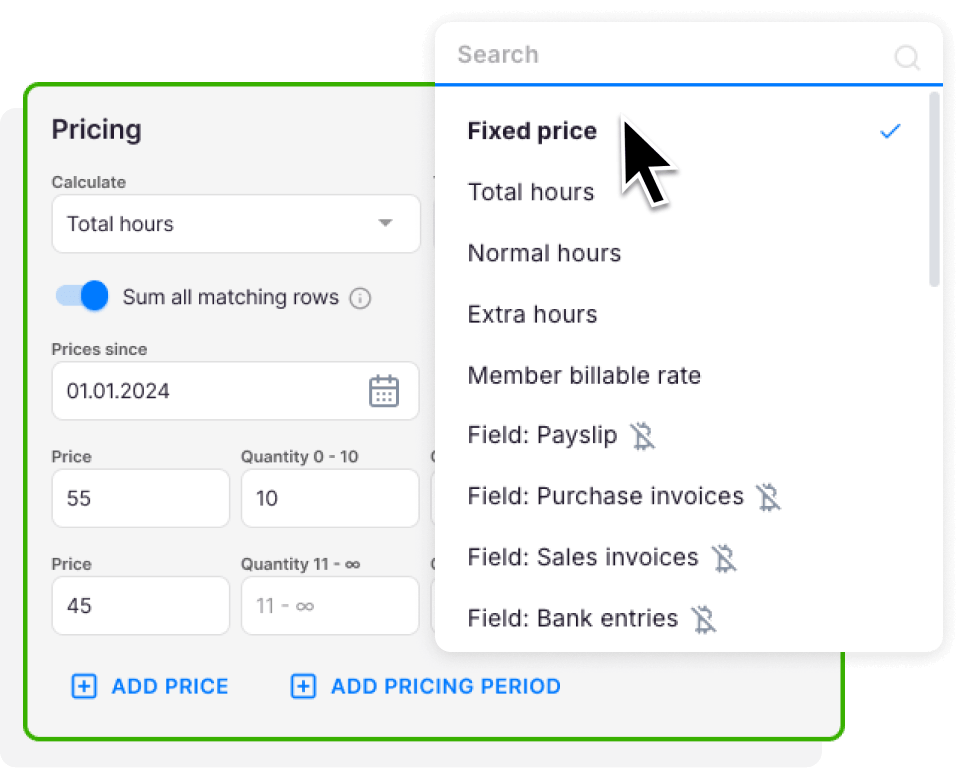
Billing contracts then draft each period’s invoices from tracked time and each client’s agreement, so the parallel cycle compares like with like.
Every plan includes 90 minutes of onboarding. For more help, Uku’s onboarding packages ($700 for teams of up to 4, $2,000 for up to 15, custom for larger firms) include importing clients and contacts, company settings, task templates and team training; the larger package adds project, email and contract templates. Enterprise includes assisted client import.
It works for US firms in tax season too. Gordon J. Maier & Company, a 43-person Wisconsin CPA firm, went live on Uku weeks before tax season and ran the whole season through it.

If your firm uses an AI assistant, the Uku MCP server connects in a day and can check the move for you: which clients came across, which have no workflow yet, and how the first Uku invoice run compares with the last one from Practice CS.
Practice CS migration checklist
- Support and SaaS renewal dates noted; cut-over date chosen outside tax season
- Practice CS SQL database backed up; copy stored with the firm
- Billing history, WIP and receivables aging reports saved as PDF and Excel
- Clients exported as XML and cleaned in Excel
- All contacts exported to Outlook, then to CSV
- Open WIP billed or written off before cut-over
- Accounts receivable report as of the cut-over date; balances carried across
- Project types rebuilt as templates; billing arrangements set up per client
- FileCabinet CS documents and NetClient CS clients planned for
- Stripe set up if you keep taking payments in Practice CS until the switch
- One billing cycle run in parallel and compared before cancelling
Read more
- Practice CS alternatives — seven options and what each does with UltraTax
- Practice CS review — how each module works
- Practice CS pricing — every cost line, including renewals
- Practice CS vs Uku — the head-to-head
- Migrate to Uku — how a move to Uku works
Frequently asked questions
How do I replace Practice CS without losing client data?
Back up your Practice CS SQL database before anything else, export clients and their primary contacts as XML, export all contacts to Outlook, and pull the reports you need for time, WIP, invoices and receivables. Bill or close out open WIP, carry open receivables across as balances, and only cancel Practice CS once the new system has run one billing cycle. After a SaaS cancellation, Thomson Reuters says your data will no longer be available.
What data can I export from Practice CS?
Practice CS exports selected clients and each client's primary contact to an XML file that opens in Excel, with fields such as client ID, EIN/SSN, fiscal year end, status, names, addresses, phone numbers and email addresses. It cannot export additional or standalone contacts that way, but it can export all contacts to Microsoft Outlook. History such as time entries, WIP and invoices comes out through reports or a full database backup.
Can I export work in progress from Practice CS?
Not through the client export. Most firms bill or write off open WIP before the cut-over date so nothing is billed twice. Some vendors import WIP from a full Practice CS backup or a workbook; Canopy, for example, says WIP is not included in its standard Practice CS migration but can be imported separately with its Client Import Workbook.
How long does it take to migrate from Practice CS?
Plan in weeks, not days. Most firms moving to Uku are live in two to six weeks, at their own pace, while still serving clients. The calendar is usually set by your Practice CS support renewal and by tax season, so many firms move in the summer or straight after the busy season.
Is Practice CS being discontinued?
No. Thomson Reuters shipped a Practice CS release on 26 August 2026 and has published no end-of-life notice for it. FileCabinet CS gets no updates or support after 31 December 2027, and payments move to Stripe on 10 November 2026.
Can I keep UltraTax CS after leaving Practice CS?
Yes. UltraTax CS is a separate product and keeps working. You lose the shared client database between the two, so decide which system is the master for client details and keep the other in step.
Does Uku import Practice CS data directly?
No. Uku has no Practice CS importer. Clients come across from the Practice CS XML export opened in Excel, or from QuickBooks Online; historical time, WIP and invoices stay in Practice CS reports or your backup. Uku's onboarding packages include importing clients and contacts and setting up templates, and every plan includes 90 minutes of onboarding.